
Getting started
From installing the app to your first conversation
Install the app
Open the download page and choose macOS, Windows or Linux. Get the installer from lummia.io. On macOS, move Lummia to Applications; on Windows, run the installer; on Linux, allow the AppImage to run as a program.
Sign in and introduce yourself
Sign in with Google. After registration, choose a unique username: 3–32 Latin letters, digits or underscores, starting with a letter. Spaces are not allowed. A Lummia contact is displayed as Lummia:@nickname.
A phone number and birthday are optional. Your phone number stays hidden unless you enable visibility in your profile. Your birthday is visible only to you.
Find your space
If you received a group or workspace invitation, open the link and confirm joining. Create and join workspaces from the menu above the left sidebar. Workspaces keep contexts separate; having an account does not grant access to other people’s conversations.
The full personal experience outside workspaces is still evolving. In the current desktop release, existing direct messages are scoped to a workspace.
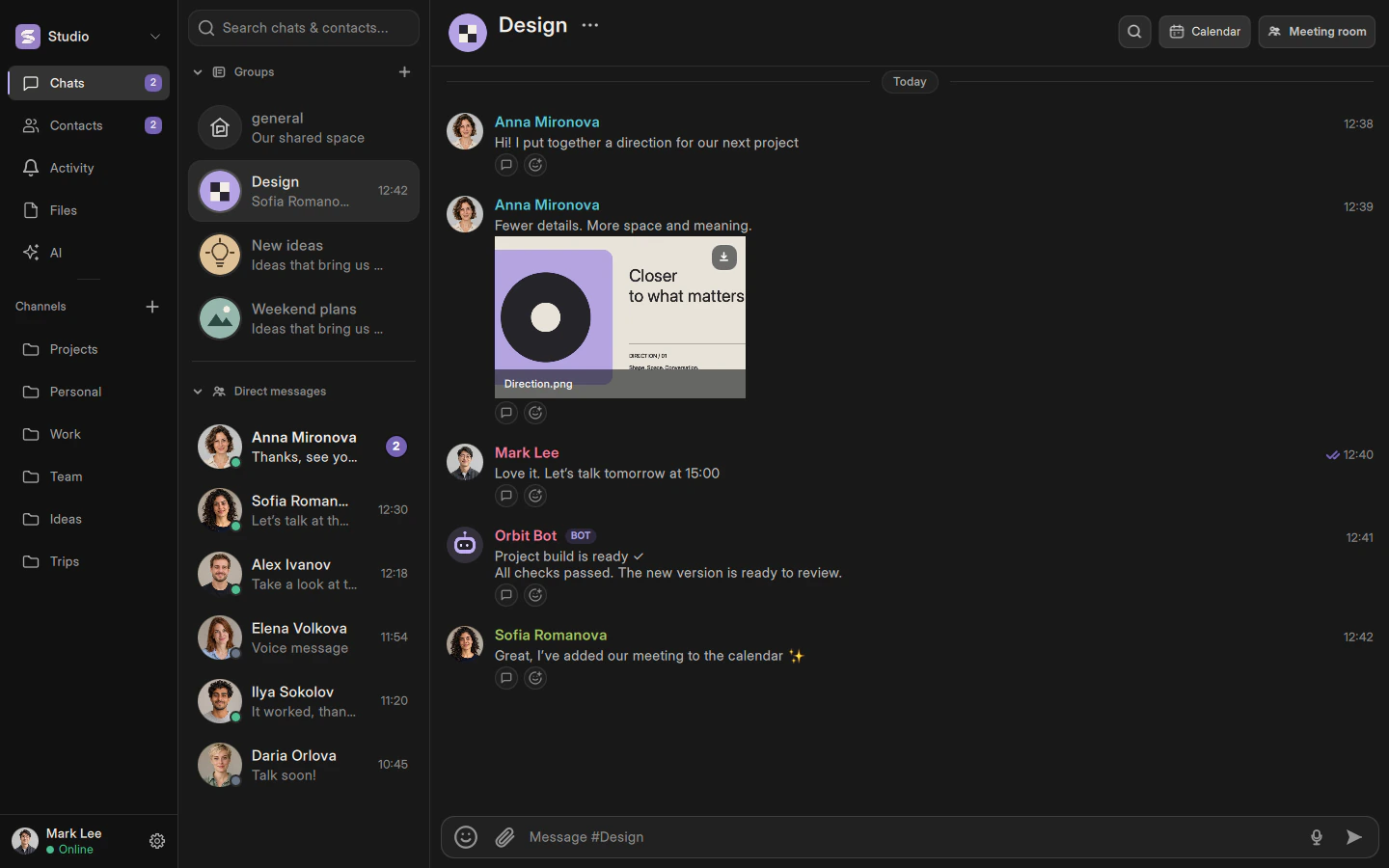
Describes the current implementation. Mobile availability and limitations are documented separately.